Posts

Veeam Security and Compliance Analyzer - Powershell Script Error

Image
When you open up Powershell as an administrator and attempt to run the tool you get the following error: Compliance: The term 'Compliance' is not recognized as a name of a cmdlet, function, script file, or executable program. Check the spelling of the name, or if a path was included, verify that the path is correct and try again. The trick left out of most instruction sets on how to run the script is you should not be using the standard powershell window, but from the Powershell Console within your Veeam Backup and Recovery.    Here is the tool instruction set https://www.veeam.com/kb4525
365 Sharepoint and OneDrive locked out recovery

Image
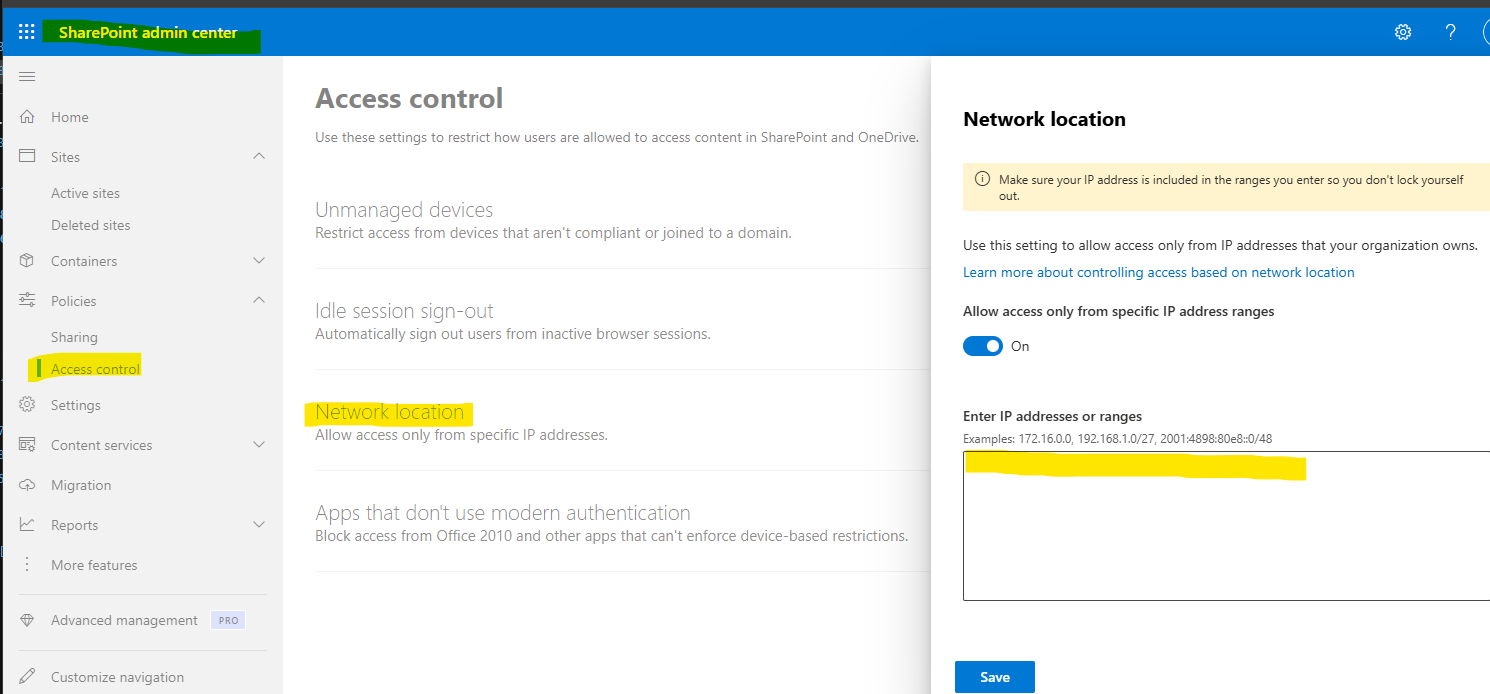
 If you implemented a security policy in Sharepoint/OneDrive to limit access based on IP addresses not done via conditional access policies. Then you cant get in again! Download and run SharePoint Online Management Shell from  here . Open up Powershell as an Administrator and run below commands. Connect-SPOService -url   https://your domain here-admin.sharepoint.com Log onto Office 365 with Global Admin Set-SPOTenant -IPAddressEnforcement $false Set-SPOTenant -ConditionalAccessPolicy AllowFullAccess Log off and back on and retest access to 365

365 Outlook Signatures on this device vs email account

Image
Office Suite Signatures shows a dropdown with your email address and "signatures on this device" This is caused by "Roaming Signatures" If your are one of those people that has a lot of signatures on your device you may want to disable the drop down. Here is the fix via the registry. Logged on as the user with the issue (which you may need to make a local admin temporarily if not already to edit the registry ) run Regedit and browse to: HKEY_CURRENT_USER\Software\Microsoft\Office\16.0\Outlook\Setup\ Create a new DWORD (32-bit) Name it "DisableRoamingSignaturesTemporaryToggle" and set value to "1" Close Regedit and reopen Outlook and confirm Roaming Signatures are disabled. Note: Do not forget to set the user back to a local user as necessary and logoff or reboot.

ADMT - WRN1:7814 A unique match was not found

ADMT  received the following error when merging accounts from 2 domains. I found that the domains being from different countries had different letters/accents.  The destination domain had Standard American characters for the usernames for example: Jeroma Cotec However on the source domain was: Jérôma Cotéç That caused the error above. We renamed the source domain user to standard US characters and the user merged with no issues. Jeroma Cotec

Server 2022 - SMTP Server Install and Customize to avoid IIS 6 MMC crash

Image
 NOTE: SMTP service is depreciated in Server 2022 however it still works if modified as listed below. To install SMTP services and not other unneeded IIS tools on Server 2022 Open Powershell as administrator and run Install-WindowsFeature -Name SMTP-Server Set-Service SMTPSVC -StartupType Automatic Net Stop SMTPSVC Net Stop IISADMIN Make a Backup Copy of  “C:\Windows\System32\inetsrv\MetaBase.xml” Copy “C:\Windows\System32\inetsrv\MetaBase.xml” to Documents and Edit Find: <IIsSmtpServer Location =“/LM/SmtpSvc/1” Add (Settings are alphabetical): RelayIpList=“” Save File Replace “C:\Windows\System32\inetsrv\MetaBase.xml” with edit copy Net Start IISAdmin Net Start SMTPSVC After configuring your SMTP server: To test SMTP flow install Telnet via Powershell: Install-WindowsFeature -Name Telnet-Client telnet smtp.clientdomain.com 25   (or IP) EHLO yourdomain.com MAIL FROM: internalsender@clientdomain.com RCPT TO: externalrecipient@testdomain.com DATA From: internalsende...

Office Suite 32/64 Determining version with CMD

Image
  Open CMD Prompt as an administrator and browse to the following folder If this folder exists you are likely running 32 bit: cd c:\Program Files (x86)\Microsoft Office\Office16\ If this folder exists you are likely running 64 bit: cd c:\Program Files\Microsoft Office\Office16\ From either folder run the following command: cscript ospp.vbs /dstatus It will then show you the Office version information: Credit: https://learn.microsoft.com/en-us/microsoft-365/troubleshoot/licensing/determine-office-license-type?tabs=windows

Shared Printer Installation Fails - Error 740

Image
When installing the printer even as an administrator on the PC it fails to complete with error 740  Open up a command prompt as an administrator then run the following command to open up the "add a device" printer installation wizard: rundll32 printui.dll,PrintUIEntry /il Select the printer and the installation should complete properly with elevated credentials.

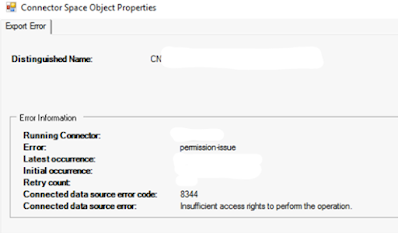
365 Azure AD Synchronization Permissions – Insufficient access rights 8344

Image
  In Azure AD Sync you get the following 8344 Insufficient access rights to perform the operation on one or multiple accounts: Go to ADUC and right click on your domain to open Properties. Go the Security Tab and confirm the account that is used for synchronization has the following permissions: If still having the issue, I have found that if your sub OU or users are blocking inheritance that can also block the permissions from applying to the lower OU’s. Here is an example of proper setting in an sub OU. Note it says “Disable Inheritance” indicating inherence is properly enabled: Note: Inheritance may be disabled for another reason so please confirm with your Administrative team before revising. Worse case you can manually add those permissions without enabling inheritence.   The same can happen to an individual user. In this case Inheritance is disabled thus the option displayed to “Enable Inheritance” :

365 Delete Malicious Content - Hunt Status Code 400

Image
  When you access your 365 Exchange mail trace and run a query it will show the “Go Hunt for this message” option.       However if you don’t have the proper Microsoft Defender Licensing it appears to fail the hunt: For a more manual FREE method of clear those messages out such as the one in the image below we can use the Compliance Features. From Admin Centers Open Compliance: Content Search: Name and Description (Shorter name is easier for script later)   I am only removing from Exchange in this instance:  I selected Query Build so I can customize for my query:  Confirm/Submit: You can monitor it from the Content Search and open it once status is complete:   Double click to open the results: Reminder: If your query legitimate or not contains more than 10 emails per mailbox or more that 50,000 mailboxes this will not work! If you have more than 10 it may only delete the first 10 it finds. If you run it over and...

Enabling MFA in Veeam BR 12

Image
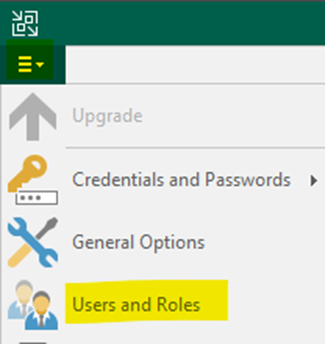
  Veeam is now supporting OTP App MFA in their console application with the release of Veeam Backup and Replication v12. There is some preliminary work required. It requires a read through understanding first, but it works.   High level - While you can only do so much with access to the server, you can block RDP to it (best practice) and force MFA on local accounts in Veeam.   The snag is to turn on MFA you cannot use groups, so you need to add your Administrator or anyone else individually, set Veeam permissions and remove the default Administrators group.   To skip/block any account from requiring MFA you click on "this is a service account" and it won’t force MFA.   You then turn on MFA for the system. That enables it for the user that needs MFA and everyone else that is not a "service account". It will prompt them with a scannable app code and one you can cut and paste into an app such as mobile authenticator or ITGlue.   If access...

DHCP Quick Migration

Image
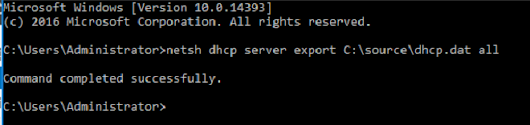
If you have a newer domain you can setup failover to the new DHCP and then remove the failover dependency after or you can do a quick file copy if you can have a quick down window. I am a fan of the following process for efficiency: First I would recommend lowering your TTL on DHCP to 30 min to an hour Open command prompt as an administrator from the server you are exporting DHCP from: netsh dhcp server export C:\source\dhcp.dat all Copy the dhcp.dat to the C:\source\ on the new DHCP server Run the following command from command prompt as an administrator: netsh dhcp server import C:\source\dhcp.dat all Confirm settings imported and revise scopes as necessary Disable old DHCP server (disable service to avoid auto start later) Enable/Authorize new DHCP server and scope and test Note: Dont forget to point any DHCP helpers or other network appliances as necessary to the new DHCP server. Another migration method is to run the following:  From current DHCP Server export to c:\source (na...

Force Restart of Remote PC or PCs

Image
It happens all the time. You have a system you cant reach internally or other remote access software, but you can ping it and know it is alive. You know if it is restarted it will probably allow you access and you don't want to drive across town or worse to press a power button.  From a domain controller logged on as administrator run the following command from the run menu " Shutdown /i " The following shutdown menu will appear: ' Click Add to add the computer name you need to restart or shutdown. If you want it to restart it without delay, change the option from Restart to Shutdown so you can access and uncheck the greyed out "Warn user of the action" Then change dropdown back to restart and you can restart without "warning" You will have to put in a comment as well. before clicking ok. I would recommend you also open up a command prompt and run a constant ping using the Ping -t command to see when it goes offline and comes back for example:

Upgrading Windows Server -Windows Cannot Find the Microsoft Software Licensing Terms

Image
  When attempting to upgrade from Server 2012R2 to 2016 or 2019 I received an error similar to this one. It may even say Windows 7 or Windows 10 going to a server version which makes you scratch your head. Make sure you have a valid backup available if possible snapshot as needed You can review the upgrade logs here: https://support.microsoft.com/en-us/topic/log-files-that-are-created-when-you-upgrade-to-a-new-version-of-windows-9ec8aa31-0cc1-a0b2-2d98-e9c6714349b9 Make sure NO GPO’s are applying to the server that could impact licensing If using KMS you can also drill down into its configuration but that’s a deeper dive than we needed: https://learn.microsoft.com/en-us/windows-server/get-started/activation-troubleshoot-kms-general Create a local Administrator instead of a domain Administrator Install Windows Updates available and reboot Disconnect from network Attempt 1) Logon as local Administrator and attempt Upgrade Attempt 2) Try removal from the domain...

Windows Server Convert from Eval to Standard or Datacenter

 If you installed a windows server using evaluation versions you will need to convert it a standard or datacenter version to license it.   Before you start: -Confirm you have a good update -Confirm you have a tested backup available -Dont perform this on a domain controller   To convert open CMD Prompt or PowerShell as an Administrator confirm what version is running: dism /online /get-currentedition see what versions you can change to: dism /online /get-targeteditions To convert and install a license run the following with your license key: dism /online /set-edition:serverstandard /productkey:<Your-Key-Goes-Here> /accepteula If you just need a temporary key till you install your legal keys or you have a KMS server you can use the KMS keys on MS to get your OS converted: https://learn.microsoft.com/en-us/windows-server/get-started/kms-client-activation-keys For example to convert Server 2022 from Evaluation to Standard Server 2022 I used...

AD Replication Troubleshooting steps (DNS)

Image
  Quick Checks: -Check and confirm the network browsing is working and it has not changed your firewall to public -Use Event Viewer to get more detail. It is the easiest quick resource but note the timeline of the errors many times you will see errors as the server is booting up and initializing. Ignore those and pay attention to the logs after full boot up completes. (i.e. don’t chase your tail) -Most alerts are generic in their details/description. Make sure you are addressing ones that matter for your current AD forest and domain level. If it doubt escalate to someone that knows. You can melt down your domain by following bad online advice. -Check DNS settings on the network interface and point your DC to another DC first then itself second. There are different views on this but I do so to avoid DNS isolation. -Know your FSMO Role holders. If you don’t know what FSMO role holders are you should not be learning on production. Quickest way to check them is: NETDOM /que...

Windows 10 update Stuck at 8% for Windows 11 Upgrade

Image
 Windows update Stuck at 8% for Windows 11 Upgrade While trying to upgrade a patched Windows 10 workstation from Windows update the downloader kept stopping at 8% Since that was failing. I tried the Windows 11Installation Assistant https://www.microsoft.com/en-us/software-download/windows11? However that interface would download and appear to get near the end of install then fail with an alert about unable to upgrade due to Windows Update. I stopped the Windows update services and same issue. I attempted to use Dell provided recovery USB Media and that was failing too. I returned to Microsoft's site and used a 16GB flash drive and used the Create Windows installation Media downloader. https://www.microsoft.com/en-us/software-download/windows11? I selected the USB option and after the download completed I ran Setup.exe from the flash drive. It then completed the upgrade and retained the Windows 10 settings and data.